Monday, April 30, 2018

Security: Create and view Audit Logs

It is important to have a secure environment, enforcing the least privilege principle in your servers and databases, but this can be difficult to achieve on large environments, where a lot of people have elevated privileges or several people have permissions to perform tasks over your data or schema.

As an additional measure, an audit log should be implemented in those scenarios and review these often.

SQL Server provides the functionality to implement audit logs at Server and Database level. Starting SQL Server 2008, all SQL Server editions support Server level audits. Database audits are supported beginning with SQL Server 2016 (13.x) SP1. Prior to that, database level auditing was limited to Enterprise, Developer, and Evaluation editions.

On this post I will show you how to configure and view audit logs:


Implement Audit Log


Under security, go to Audits and select New audit...
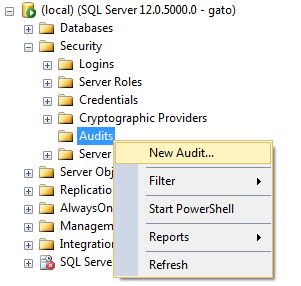

Specify a name for the audit and select an audit destination (I personally prefer a file location).
Select the desired parameters and click OK.


The Audit is now created, for it to work just enable audit.
NOTE: before making any changes to the audit configuration, you will need to disable it first.


Implement Server Level Audit


We have created our audit location, now we will proceed to create the actions we want to audit at server level.

Under Security folder, locate  Server Audit Specifications, right click and select New Server Audit Specification...


In the next window, Specify a name for the audit (you can have more than one) and select the audit created in the previous step.


Choose the action or actions to be audited. To check what is included on each action, please read here from Microsoft documentation.

Once you are done click OK to create the audit specification.
For this example I just have included the DBCC action to be audited (as we will see later on this post)


The Audit specification is also created disabled, to make it work, enable it as shown in the image.


NOTE: before making any changes to the audit specification, you will need to disable it first.


Implement Database Level Audit


The process is relatively the same to create a database level audit specification, the main difference is that the option is located under the Security folder on each database.

Right click on the Database Audit Specification folder and then New Database Audit Specification...


Select the name of the Database Audit and the audit destination (the same created in first step for this example).
Another of the key differences for Database Audits is that we have to select the object or schema we want to check.
Select the actions to audit (you can see description for each one here), and then click Ok.

For this example I will audit the SELECT command over the a table named Course in a sample School database.


After the creation of the audit specification, you must enable it to run.


NOTE: before making any changes to the audit configuration, you will need to disable it first.


Review audit logs


Having the audits configured and running is just half of the work, it will worth nothing if you don't proactively review the logs often.
There are 2 options to review the logs, using SSMS and T-SQL

For this example I have executed some sentences to trigger the server and database audits configured above so we can see some data.

SSMS


To check event logs using Management Studio, just select the Audit created, right click on it and select the View Audit Logs option


The audit log will display in a SQL Server log kind type, and you can see some of the examples I have triggered


T-SQL


For using this option, you use the DMF sys.fn_get_audit_file, specifying the file location, and for file name use *.sqlaudit to include all the files.

This is the query I use for this example:


SELECT event_time,action_id,statement,database_name,server_principal_name 
FROM sys.fn_get_audit_file ('C:\temp\TestAudit_*.sqlaudit',default,default);  

The output of the query looks like this:


I have marked in yellow the actions that have been captured in the database specification.


With this info you are good to go configuring your own audits for your Mission critical servers and review them often, also you could implement an alert or automatic reporting logic to be notified on suspicious activity.

Sources:

https://docs.microsoft.com/en-us/sql/relational-databases/security/auditing/sql-server-audit-database-engine?view=sql-server-2017

https://docs.microsoft.com/en-us/sql/relational-databases/security/auditing/sql-server-audit-action-groups-and-actions?view=sql-server-2017

Wednesday, April 25, 2018

Quick tip: format source code in html

I run a technical blog, so it is necessary to put code in almost every post. Most of the GUIs we use to do our work (let's say SSMS or Visual Studio) already provide this functionality, but when you copy and paste the code to the blog, you need to format it first, to pass from this:

DELETE FROM database1.schema1.table1 WHERE column1=valuex
/* generic comment */
SELECT * FROM database2.schema2.table2 WHERE column2=456

To this:

1
2
3
DELETE FROM database1.schema1.table1 WHERE column1=valuex
/* generic comment */
SELECT * FROM database2.schema2.table2 WHERE column2=456

These are some sites I use:

http://hilite.me/ 

My site of choice, it supports several languages and you can select predefined styles and customize them on-site.

http://poorsql.com/

Only for SQL, it provides a more robust keyword detection, but the format and customization is more limited, it also offers some obfuscation options.

http://www.dpriver.com/pp/sqlformat.htm

Also a good option, supports various languages, but a little bit more complex to use than hilite.me

Monday, April 23, 2018

Configure Min and Max memory in Reporting Services


As any of the available SQL Server services, Reporting Services will use all of the server memory if needed, in some cases when you have multiple products configured for the same server, you need to limit these values, we use WorkingSetMaximum and WorkingSetMinimum configuration values to achieve this task.

Where to set these values?


Find the .config file


We need to localize the RsReportServer.config configuration file in our server, this file is in the SQL Server installation folder under MSRS00.XXXX\Reporting Services\ReportServer where the 00 is your reporting services version and the XXXXX are your instance name.
NOTE: Before changing any parameter in this file, also take a backup of the file contents first.

Find the Service tag


Once you have located the file, proceed to find the <Service></Service> tags, and add the <WorkingSetMinimum> and <WorkingSetMaximum> as desired, values are specified in kilobytes, so for example, to set a value of 4 GB you must put 4000000.
You can see a sample code of a min memory of 2GB and a max memory of 4 GB


<Service>
 <MemorySafetyMargin>80</MemorySafetyMargin>
 <MemoryThreshold>90</MemoryThreshold>

 <WorkingSetMinimum>2000000</WorkingSetMinimum> 
 <WorkingSetMaximum>4000000</WorkingSetMaximum>  
</Service>


When the value for WorkingSetMaximum is reached, the report server does not accept new request, so please have this in mind before configuring this value.
Also note that a service restart is required for the values to take effect.


Source:

https://docs.microsoft.com/en-us/sql/reporting-services/report-server/configure-available-memory-for-report-server-applications?view=sql-server-2017

Wednesday, March 21, 2018

PowerShell script repository - SQL Server

A simple get-help output

PowerShell is a .Net based command line tool designed for automation.


It is recommended to script repetitive task in PowerShell  (.ps1 files) as they can save you a lot of time if otherwise you perform the tasks manually.


A lot of common tasks templates are offered by Microsoft Technet Script center, as you can see in this link:
 
Technet Powershell Repository for SQL Server


Friday, March 2, 2018

Reporting services error: User XXXX does not have required permissions

If you encounter the following error trying to access reporting services:


User XXXX does not have required permissions. Verify that sufficient permissions have been granted and Windows User Account Control (UAC) restrictions have been addressed.

Possible cause is that you give the user permissions in the wrong place (under site settings) but it does not have access to browse the folders.

Solution for this is very simple and is related on how the permissions are given in reporting services, so you must check for this:

1. Access the reporting services page with an account that already has access (if the issue is with your own account, access from the machine where the report server is installed using localhost instead machine name)


2. Select the folder you want to give access (usually the Home folder) and then click on Folder Settings

3. In the security Tab, Click on New Role Assignment add the user or group and select the desired access for it.


4. Try to browse the report server with the user. You should be able to access the report server now.

Wednesday, February 14, 2018

Performance Basics: Key lookup operator and query optimization

One of the most basic things to improve performance in our queries is using indexes, but this doesn't mean that we can blindly create them for all our tables, or just thinking that it is enough to create them only for the columns we use to "search", yes, this could be beneficial if our tables are now big enough, our system is not under a great I/O pressure.

But for high concurrency systems, queries to large tables or more complex T-SQL statements, we could tune indexes a little bit more, and try to avoid disk reads as possible as we can do it.

What we can do to improve performance is to avoid key lookups whenever possible.

Key lookup icon
The Key Lookup operator works this way: you have an index defined for your search argument, the index is used to locate the record, and then once located, an additional search is made to locate the record and retrieve the required columns in our query.

So... for example, if the query is not used often and only to locate a single record, this is not an issue, but for queries that manipulate or select big sets of data, an additional disk read for each record can painfully affect your performance.

I will demonstrate in the following example how to locate a Key lookup and how to fix it

  • Let us locate the query, I use a simple select from AdventureWorks database and the current index definition :

  • select ProductNumber
    from Production.Product
    where ProductNumber = 'CA-7457'
    
    --Index
    CREATE UNIQUE NONCLUSTERED INDEX [AK_Product_ProductNumber] 
    ON [Production].[Product]
    (
     [ProductNumber] ASC
    
    )WITH (PAD_INDEX = OFF, STATISTICS_NORECOMPUTE = OFF, SORT_IN_TEMPDB = OFF, 
    IGNORE_DUP_KEY = OFF, DROP_EXISTING = OFF, ONLINE = OFF, ALLOW_ROW_LOCKS = ON, 
    ALLOW_PAGE_LOCKS = ON) ON [PRIMARY]
    GO
    

  • With the current index definition for that table, if we execute the select statement, an index seek is performed (everything ok until now)


  • But what if, we add another column to the SELECT statement, let's say Name:

    select ProductNumber, Name
    from Production.Product
    where ProductNumber = 'CA-7457'
    

  • Now a key lookup is performed because the index is used just to locate the product number record, and an additional disk read must be performed to retrieve the name:


  • What if we change the index definition to include the Name column?

    CREATE UNIQUE NONCLUSTERED INDEX [AK_Product_ProductNumber]
    ON [Production].[Product]
    (
     [ProductNumber] ASC
    )
    INCLUDE ([Name]) 
    WITH (PAD_INDEX = OFF, STATISTICS_NORECOMPUTE = OFF, 
    SORT_IN_TEMPDB = OFF, IGNORE_DUP_KEY = OFF, 
    DROP_EXISTING = OFF, ONLINE = OFF,
    ALLOW_ROW_LOCKS = ON, 
    ALLOW_PAGE_LOCKS = ON) ON [PRIMARY]
    GO
    
  • Now if we execute the same query, an index seek is performed, we eliminated the key lookup and removed the additional I/O overhead just with including that column in the index.


  • The previous example was just for a simple select just for one table, and the performance is almost the same for both cases, but for the next example we can see the query execution is improved using index seeks instead of key lookups:

    Fist execution, indexes doesn't have included columns, key lookups are used

    Second execution: After adding included columns for the index in one of the tables

    Third execution: After adding included columns for the index in the remaining table


Always remember that you must test any of these changes prior to applying it to production, you must measure the performance before and after doing these changes to check if the additional overhead modifying your indexes worth the bonus in performance you could obtain.


Thursday, February 1, 2018

Considerations for dealing with big databases

Stress everywhere, user wants everything "Para ayer"
Photo by Bernard Goldbach


If you are like me, and have SQL Server instances with databases of Terabytes of data, also known as very large database or VLDB, and you have to perform any kind of task on a reasonable time window, while minimizing the outage and keep the user happy with overall performance of the instance.

I want to share you some tips to help to make your life easier with a variety of common tasks you can encounter.


Optimize disk space


Maybe the most common task to deal with VLDs, a real headache if you have been handover the server with no further info and you have to optimize the disk space.

SQL Files location

Be aware of the location of each data and log file for your instance, find out how much space is taking each database file and if they are splitted across several files/folders.
Next step is to order the datafiles following best practices, separate datafiles in different drives as follows (if possible):
  • System databases (except for tempdb).
  • Tempdb database.
  • User datafiles (.mdf and .ndf files).
  • User logfiles (.ldf files) 


Use multiple filegroups

Most of the databases start with only one default filegroup. As you database becomes bigger and bigger, you should consider splitting your database into multiple filegroups, you can move big historical or log tables into a different filegroup and even mark them as read only, or separate them by business rules so that way, more critical data can be backed up more often using filegroup backups (more on this later on).

Monitor File growth

Put in place regular database growth monitoring (how you achieve that is up to you), but a proper alarm in time can avoid you a unpleasant outage or a critical ticket.
You can set an alarm (email, SMS, IM) when certain threshold is reached, for example a disk having 80% space used, so you have enough response time to check what is going on.

When creating new datafiles, set the expected size upon creation, don't rely on the auto-growth feature, as is recommended to have it enabled as a safeguard, always expand your datafiles manually with the expected size.
Remove the percent autogrowth feature, 10% of 1 GB is not the same as 10% of 1 TB, always prefer fixed sizes.

Data compression

Another feature of SQL Server is to row and page compression to reduce the disk space, the only drawback is that you have to consume more system resources to do the decompression when data is accessed.
Page compression usually saves more disk space, but also have a higher resource consumption for compress and decompress data.
If your database has high resource consumption, maybe this is not for you.


Backup/restore


If you don't have an adequate configuration for your VLDBs, the backup and restore windows can be also an issue, especially if you have tight RTOs for critical systems.

Backup compression

Out there since 2008, this feature is not commonly used, because it is not active by default, this can save you a lot of disk space for backups and reduce the backup time.

Filegroup backup

As stated above, consider separate your data into multiple datafiles and filegroups, this way using the backup filegroup option, you can use any business logic you want to achieve that, so more critical data can be backed up more frequently than the whole set, this also reduces your RTOs for your databases.

Differential backup is your friend

A good backup strategy must consider using differential backups for big databases, since these backups only store the changes from last full backup checkpoint, the size of the file will become larger as the time of the full backup increases, so you have to find a balance between full/diff backups that better suits your needs.


High Availability solutions


Mandatory for critical databases, even when the configuration of those can be a little more difficult due to the size of the databases, in case of a failure this can save your life, is always faster just to move to your secondary database copy than perform a full restore of the backups.
Which high availability solution you use depends a lot on your budget and the system configuration, but anything is better that nothing at all.


Transaction log


A couple of times in my personal experience, sudden high TLog growths have filled the disks and the alarms start to fire everywhere.  None these times was funny at all!


Backup your transaction log regularly

The more frequently you backup your log, the smaller the files will be, due the fact you need all the transaction log backups from the last full/diff, you have also to find the balance between backup frequency/file size.

Simple recovery mode

If your database is big due to a lot of historical data used mainly as read only, why bother having log backups? this can save up space you anyway will never use.
If your database have historical and high transactional data, consider split it into separate databases and configure the reporting ones as simple recovery mode.

Avoid shrinking whenever possible

Database shrinking can lead to fragmentation, always use it with caution and only in exceptional situations.
If your log grows  way often, then you have a issue with a query or queries that needs to be optimized.


T-SQL performance


For your application performance and object maintenance, especially if you are a hard-coded database administrator, you really cannot do much about, when another team is in charge of the database programming part, what you can do is to generate reports and advise user on improvements that could benefit all together.

Check for unused database objects

You will be surprised on the number of unused tables/indexes old databases have, check regularly for unused indexes and tables (we will do a post on how to check this in a near future), this can be helpful to free up some space.

Optimize your T-SQL code

Bad programming techniques, missing indexes, not using search arguments, can lead to poor performance queries, in a big database can lead to queries, reports, processes that take a long time to complete, use additional transaction log space and also use additional tempdb space, all of these thinks are bad for a high response database, so always identify your top resource consuming queries and try to optimize them.
Also as stated above, separating your tables across partitions/filegroups/datafiles/databases can be helpful to overall performance.

Reorganize and rebuild indexes

If your database is small, this is not an issue, but for big databases, think twice before reorganizing/rebuilding an index, this can be a high resource/high time consuming task, and transaction log of your database, as the tempdb size can significantly increase in matter of minutes.
Avoid using maintenance plans for big databases and implement specially tuned index and statistics maintenance jobs, that can determine if the maintenance is really needed for a particular object.


Please be aware that all of the described above are suggestions with no special order, and can drastically vary from one environment to another, so always keep in mind this!

From DBA or Data Engineer to AI Engineer: A Realistic Path

If you spend your days tuning queries, managing pipelines, or keeping a production database alive, you already carry most of what an AI...