Showing posts with label Programming. Show all posts

Monday, July 15, 2019

Refreshing dependent views after a DDL change

When you are in charge of databases with tons of objects, making a small change over an object can be difficult to replicate if you have a lot of objects that depend on it.
For this post, we will focus on how to update column changes on dependent views.

For this type of task, there are 2 scenarios:


  • You explicitly defined column names on the dependent views, or defined WITH SCHEMABINDING: For this case, you need to perform a find/replace task, this can be difficult to achieve since there are no native tools to do it (as far as I know). You can use third-party free tools like RedGate SQL Search or ApexSQL SQL Search, both having its pro and cons, so take a look at both tools and find out what it suits best your needs.

  • You implicitly defined column names on dependant views: The famous SELECT *, even when this is not a best practice, it is easy to replicate changes for this case, we will show you how to do it.


Setting up our example

We will use WideWorldImporters test database for this example, we create two simple views (one depending on the other), as follows:


USE WideWorldImporters;
GO

CREATE VIEW dbo.[vi_invoices_received_by]
AS
SELECT 
    ConfirmedReceivedBy, 
    COUNT(InvoiceID) as [Num],
    CustomerID
FROM Sales.Invoices
GROUP BY ConfirmedReceivedBy, CustomerID;
GO


CREATE VIEW dbo.[vi_additional_fields_received_by]
AS 
SELECT RB.*,
C.CustomerName 
FROM dbo.vi_invoices_received_by RB
INNER JOIN sales.Customers C
ON C.CustomerID = RB.CustomerID;
GO

We proceed to execute the second view, you can see that the column labels of the first view are not so descriptive, and can be improved:


So we proceed to execute an alter view over the first view:


ALTER VIEW dbo.[vi_invoices_received_by]
AS
SELECT 
    ConfirmedReceivedBy as [Received by], 
    COUNT(InvoiceID) as [# of Invoices],
    CustomerID
FROM Sales.Invoices
GROUP BY ConfirmedReceivedBy, CustomerID;
GO

So we should now be able to see the updated column names on the second view, right?
but if you execute the view again, you will obtain the same results as before:


What happened?

Refreshing your dependent views

SQL Server provides the procedure sp_refreshview to update metadata of views, so you can use it to update the schema without having to recreate the objects.

For our case, you just have to execute the following code against the second view:


EXEC sp_refreshview 'dbo.[vi_additional_fields_received_by]'; 
GO

If we execute the second view again, we can see that the labels have been updated now:


And that is all, you just have to execute the procedure for each dependent view.

What if I don't know the dependent objects?

There are several ways to determine what objects depend on the one you are modifying, I will show you two of them.


  • Via T-SQL: Execute the sp_depends procedure, it will return two subsets: the first one, are objects on which our current object depends. The second one objects that depend on the current object. Usage is as follows:


  • Via SSMS: Just right-click on the object and select View Dependencies


Tuesday, May 7, 2019

Embed Azure Data Studio Notebooks in your website

Notebooks are a functionality available in Azure Data Studio, that allows you to create and share documents that may contain text, code, images, and query results. These documents are helpful to be able to share database insights and create runbooks that you can share easily.

Are you new to notebooks? don't know what are the uses for it? want to know how to create your first notebook? then you can get started in ADS notebooks checking my article for MSSQLTips.com here.

Once you have created your first notebooks and share them among your team, maybe you want to share it on your website or blog for public access.
even when you can share the file for download, you can also embed it on the HTML code.

On this post, I will show you how to do it.

What do you need?


We will use an online HTML converter, nbviewer, provided by Jypiter website, on that homepage, you just have to provide the link of your .ipynb file (my GitHub Notebook repository for this example).

It looks something like this:


After clicking the Go! button, the next window will show you the notebook rendered:


At this point, you could share this link on your site and the user can click on it to see your notebook contents, but what if you want to show the results directly on your website?

Embedding it into your website


You can use the IFrame HTML tag (reference here), with this tag, you can embed an external URL in your HTML code (just be aware of security risks of embedding external code in your application).
the code should look like this:


<iframe
width="600px" height="800px" 
src="your nbviewer URL" >
</iframe>

The final result is this:


Not the best possible way ¯\_(ツ)_/¯, but it is something.

Going further

If you want to fine-tune the above results or host them on your own website, you can check nbviewer GitHub repository so you can use the code locally.

Wednesday, January 30, 2019

Understanding and working with NULL in SQL Server

Graphic representation of the difference between 0 and NULL
Image taken from 9gag.com
According to database theory, a good RDBMS must implement a marker to indicate "Missing or inapplicable information".

SQL Server implements the lack of value with NULL, that is datatype independent and indicates missing value, so the logical validations are different, this is better known as Three-Valued Logic, where any predicate can evaluate to True, False or Unknown.

I see a common error, referring to null like "Null values" but the correct definition of null is "Lack of value" so you must refer to it as null, in singular form.

On this post, we will learn how to work with null in SQL Server.

Declaring and assigning NULL


For working with null, SQL Server engine uses the reserved word NULL to refer to it.
It is datatype independent so you just have to assign it to any variable or field, using the equal operator =, as you can see on this example:

DECLARE @NVi as int = NULL;
DECLARE @NVc as nvarchar(30) = NULL;
DECLARE @NVv as sql_variant = NULL;

SELECT @NVi, @NVc, @NVv;

If we run the statement, we will obtain these results, the same for each data type, as expected.


For inserting and updating fields with NULL we do it like on this example:


-- For inserting values
INSERT INTO test1..Table_1 (column_char,column2)
VALUES(NULL, NULL);

-- For updating values
UPDATE test1..Table_1
SET column2 = NULL;

Be careful when working with null, the equal operator = is only used for assignment.

Operations and comparison against NULL


As we stated earlier, any predicate or comparison can evaluate to TRUE, FALSE or UNKNOWN, so when a value is unknown we don't know if it is true or false, so comparing or working any value with unknown is also unknown.

For example, the following operations result is NULL in all cases:

--Arithmetic operations
SELECT NULL+5,NULL-3.47, NULL*3.1416, NULL/0; 

SELECT SQRT(NULL), POWER(NULL,2);

--String operations
SELECT 'HELLO ' +NULL + 'WORLD';

SELECT QUOTENAME(NULL);

SELECT LTRIM(NULL);

--Date operations

SELECT DATEADD(m,1,NULL);

SELECT DATEDIFF(m,GETDATE(),NULL);

When comparing to null, we also obtain null as well, as in those examples, as you can see, even comparing null to null is unknown, and when we execute below code, we obtain NO for all:


--comparing to 0
IF(0= NULL) OR (0 <> NULL)
 SELECT 'YES'
ELSE
 SELECT 'NO' 

--Comparing to empty string ''
IF(''= NULL) OR (''<> NULL)
 SELECT 'YES'
ELSE
 SELECT 'NO' 

--Even comparing to another null
IF(NULL= NULL) OR (NULL<> NULL)
 SELECT 'YES'
ELSE
 SELECT 'NO' 

So, if we want to compare value or column and check if is null or not what must we do?
SQL Server implements the IS NULL and IS NOT  NULL to compare against null, usage is as follows:


-- IS NULL usage

SELECT *
FROM test1..Table_1
WHERE column2 IS NULL;


-- IS NOT NULL usage

SELECT *
FROM test1..Table_1
WHERE column_char IS NOT NULL;


-- Using on IF construct

DECLARE @NVi as int = NULL;

IF(@NVi IS NULL)
 SELECT 'YES'
ELSE
 SELECT 'NO';


-- For Replacing NULL you can use
-- ISNULL Value since SQL 2008

SELECT ISNULL(@NVi,0);


With these tools we are ready to work with null in our databases, so now you should follow some considerations to not impact your database performance.

Special considerations for good performance


As the last point, I would like to give you some tips for dealing with NULL

Prefer IS NULL over ISNULL()


When possible, try to compare predicates using IS NULL, before casting NULL to default values using ISNULL(), because casted values are not SARGABLE.

Take as an example of these two queries, they are equivalent, but the first one has better performance over the second:


-- First query uses an index seek :)
SELECT FirstName
      ,MiddleName
      ,LastName     
FROM Person.Person
WHERE MiddleName = N'' 
 OR MiddleName IS NULL;

-- Second query uses an index scan :(
SELECT FirstName
      ,MiddleName
      ,LastName     
FROM Person.Person
WHERE ISNULL(MiddleName,N'')=N'';

These are the execution plans:

First query execution plan, an index seek is used :)

Second query execution plan, an index scan is used :(

We get a warning on the second execution plan
You can see the 2 differences on the 2 plans, so for this case, we prefer to stick to the first one, even if you must write more code.

Be careful with aggregations over nonexistent data


When you perform aggregations, be extra careful with no existent data, even when columns do not allow null, aggregate data that does not exist on the table returns null, contrary to what one could think can be the usual (a 0 value), as you can see on this example:


-- Even when TotalDue field does not allow NULL, 
-- the SUM of noexistent values is NUll, not 0 as one could think

SELECT SUM(TotalDue) as [Total Due]
FROM Sales.SalesOrderHeader
WHERE DueDate > GETDATE();

And the query results:


For those cases, you should use the ISNULL() function after SUM.

As I always recommend: test anything before going live, and use default values and not null columns when possible, to make your life easier.


Wednesday, January 9, 2019

Source Control using Azure Data Studio and GitHub

You can maintain and deploy code easily
Source control is a vital part of IT work, since it is used to track changes over software and documents, with two main benefits: having a centralized, up to date copy of all your applications and utilities, and to be able to rollback to a previous stable version in case of a failed deployment.

This is perfectly applicable to SQL Server, where you want to have an updated and ready to deploy elsewhere copy of your database objects.

There are a lot of source control applications and software, everyone has its pros and cons, but personally, I like to use GitHub, since it is free to use and since it was recently acquired by Microsoft, support for other products is easier (SQL Server for this case).

On this post, I will show you how to implement a source control for a database using GitHub and Azure Data Studio (ADS).

Setting up your machine


First of all, you need to have Azure Data Studio installed and running on your machine, and also a GitHub account to be able to upload and maintain your files.

You will need Git to be able to use source control features in ADS, you can download from here. After downloading it, proceed to install it on your local machine (default features are ok).

To verify Git is installed correctly, just open any command prompt and type git then press enter:


Configuring Azure Data Studio


To be able to use source control on ADS, we have to perform some simple steps:

Open ADS and click on File>Open Folder, locate the folder you want for work and click OK (can be an empty folder for now).
For this example, I am using C:\Repos\SourceControlDB


You can see that now the selected folder appears on the top bar


Once a folder is selected, click on Source Control, located on the left bar


Click on Initialize Repository


And that is all, you are ready to work with source control.


Working with Git

Adding a file to source control


Now we will add an object to our Git folder to see how sourcing works.
Open any already created database object or a TSQL query on ADS IDE


Save it on your Git Folder with a meaningful name


Once saved, you can see the file is added to the source control as an untracked change


Just select the changes you want to commit (in case you have more open files) and then click on Commit on the upper right corner of the source control area


Since the changes have not been staged, a message box asking to do it automatically, click on Yes


Provide a meaningful commit message and press Enter


Now the file has been added to source control successfully.

Editing the file


We now proceed to do a simple change in the stored procedure


At the moment you save the file, you can notice that a new change is added to source control and modified or added lines are marked on the file


If you click on the change, you can now see the actual changes made to the file


If you are Ok with the changes, commit them using the same option as earlier, and that is the basic Git usage.


We will cover the rollback, merge and some other features on the next post.

Now we will learn how to upload your local Git files to GitHub.


Linking your repository to GitHub the first time


The easiest way is using your GitHub profile, so let's do it...

Create a new repository on your profile with the options you want, and click on Create Repository


In the next step copy the code for pushing an existing Git repository


Open a new command prompt, navigate to your Git folder and paste the code there, one line at a time


In my case for the first line, the origin already exists so it will throw an error, but for your first time it will execute ok, for the second line, after a few moments it will ask you for username and password


After a few moments (depending on your folder size) files will be uploaded and now your repository is uploaded to GitHub successfully (as long with all the versions you have)


You have successfully linked your Git folder with GitHub, as you can see the file is uploaded


Your GitHub is now linked


Since we have done the linking, you can upgrade existing or add new files and they will be uploaded to GitHub when you commit the changes and sync them.

We perform another quick change to our file and commit it


Then we click on Sync to synchronize with GitHub


After the process ends, if you check your GitHub repository you can see the new change


Now you have configured your environment to support source control directly to GitHub. On the next post, we will see some other advanced options, like perform the sync automatically.
Also, we will learn how to pull those files from another place and apply them to other SQL Server instance.

Monday, November 12, 2018

Load and run custom T-SQL scripts in SSMS via Snippets

If you work with SQL Server on a daily basis, it is very likely you have a lot of custom scripts you have to execute frequently, maybe you have stored them on a folder and you open them manually as you need them, or have saved them on a solution or project file, maybe you execute a custom .bat or PowerShell file to load them when you open SSMS...

Every method has its pros and cons, and on this post, I will show you a new method to load your custom scripts on any open query window on SSMS via Snippets.

What is a Snippet?


According to Microsoft Documentation:
Code snippets are small blocks of reusable code that can be inserted in a code file using a context menu command or a combination of hotkeys. They typically contain commonly-used code blocks such as try-finally or if-else blocks, but they can be used to insert entire classes or methods.

In short words is custom code (T-SQL Scripts for us) that you use a lot and you want to have always available to use.
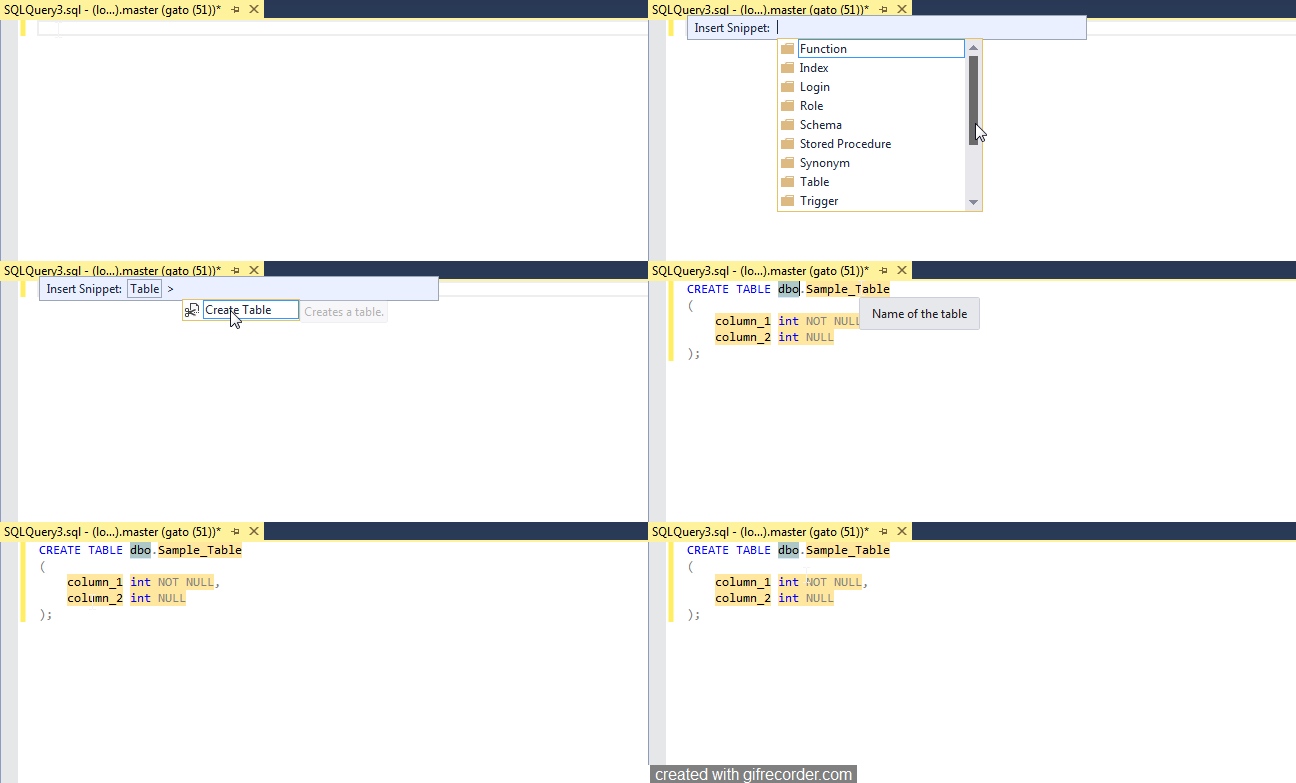
In SSMS there are a lot of code snippets available by default, that you can use right away, let us see one of them in action, we will use a snippet to insert a create table template:


You can see how easy is to load the code in any existing window, even if this already has code on it, so now let us create one with our custom code.


Creating a custom Snippet


These files are stored in XML format with a .snippet extension, you can find the official documentation here.

The basic template is this (you can find the file on my GitHub):


<?xml version="1.0" encoding="utf-8" ?>
<CodeSnippets xmlns="http://schemas.microsoft.com/VisualStudio/2005/CodeSnippet">
 <CodeSnippet Format="1.0.0">
 <Header>
 <Title>Your Snippet title</Title>
        <Shortcut></Shortcut>
 <Description>Your snippet description</Description>
 <Author>Author of the snippet</Author>
 <SnippetTypes>
  <SnippetType>Expansion</SnippetType>
 </SnippetTypes>
 </Header>
 <Snippet>
  <Declarations>
   <Literal>
    <ID>Variable1</ID>
    <ToolTip>Variable1 description</ToolTip>
    <Default>variable1 default value</Default>
   </Literal>
  </Declarations>
  <Code Language="SQL">
<![CDATA[
SELECT $Variable1$
]]>
  </Code>
 </Snippet>
 </CodeSnippet>
</CodeSnippets>

Explaining it:

  • You need to insert your custom code inside the <![CDATA[]]> label. 
  • If you have variables, you must enclose them in $ characters ($Variable1$ for our template, and then declaring the variable with the name you use inside the <Declarations> section.
  • Then declare the Script name, description, and author in the <Header> section.
  • Save it with the .snippet extension.
I have a simple script that I use a lot to see the elapsed and remaining time for any session on SQL server, so let us use it for this example, the query is the following (Note: I didn't make this script, but I was not able to find the author, so if you know him/her, please let me know so I can give the proper credit):


SELECT 
 r.session_id,
 r.command,
 CONVERT(NUMERIC(6,2),r.percent_complete) AS [Percent Complete],
 CONVERT(VARCHAR(20),DATEADD(ms,r.estimated_completion_time,GetDate()),20) AS [ETA Completion Time],
 CONVERT(NUMERIC(10,2),r.total_elapsed_time/1000.0/60.0) AS [Elapsed Min],
 CONVERT(NUMERIC(10,2),r.estimated_completion_time/1000.0/60.0) AS [ETA Min],
 CONVERT(NUMERIC(10,2),r.estimated_completion_time/1000.0/60.0/60.0) AS [ETA Hours],
 CONVERT(VARCHAR(1000),(SELECT SUBSTRING(text,r.statement_start_offset/2,
 CASE WHEN r.statement_end_offset = -1 
 THEN 1000 ELSE (r.statement_end_offset-r.statement_start_offset)/2 END)
FROM sys.dm_exec_sql_text(sql_handle)))AS [SQL Text]
FROM sys.dm_exec_requests r WHERE command LIKE  '%%' --Text of the Session you want to monitor, like BACKUP or DBCC


For this script, our variable will be the text in the like statement, so after using the snippet template, our code should look like this:

<?xml version="1.0" encoding="utf-8" ?>
<CodeSnippets xmlns="http://schemas.microsoft.com/VisualStudio/2005/CodeSnippet">
 <CodeSnippet Format="1.0.0">
 <Header>
 <Title>Running Queries ETA</Title>
        <Shortcut></Shortcut>
 <Description>Display estimated completed time for any given query</Description>
 <Author>SQLGuatemala.com</Author>
 <SnippetTypes>
  <SnippetType>Expansion</SnippetType>
 </SnippetTypes>
 </Header>
 <Snippet>
  <Declarations>
   <Literal>
    <ID>YourCommand</ID>
    <ToolTip>Command to look for</ToolTip>
    <Default>BACKUP</Default>
   </Literal>
  </Declarations>
  <Code Language="SQL">
   <![CDATA[
SELECT 
 r.session_id,
 r.command,
 CONVERT(NUMERIC(6,2),r.percent_complete) AS [Percent Complete],
 CONVERT(VARCHAR(20),DATEADD(ms,r.estimated_completion_time,GetDate()),20) AS [ETA Completion Time],
 CONVERT(NUMERIC(10,2),r.total_elapsed_time/1000.0/60.0) AS [Elapsed Min],
 CONVERT(NUMERIC(10,2),r.estimated_completion_time/1000.0/60.0) AS [ETA Min],
 CONVERT(NUMERIC(10,2),r.estimated_completion_time/1000.0/60.0/60.0) AS [ETA Hours],
 CONVERT(VARCHAR(1000),(SELECT SUBSTRING(text,r.statement_start_offset/2,
 CASE WHEN r.statement_end_offset = -1 
 THEN 1000 ELSE (r.statement_end_offset-r.statement_start_offset)/2 END)
FROM sys.dm_exec_sql_text(sql_handle)))AS [SQL Text]
FROM sys.dm_exec_requests r WHERE command LIKE  '%$YourCommand$%'
]]>
  </Code>
 </Snippet>
 </CodeSnippet>
</CodeSnippets>


We save it with the .snippet extension to a folder in our computer, the next step is to load it to SSMS.


Loading the Snippet into SSMS


Open SSMS and go to Tools> Code Snippets Manager


The following window will open. If you want to load a complete snippet folder, click on Add, or if you want to load just one snippet, click on Import.


For this example we will load the entire folder where we store the snippet template and the one we created in the previous step, so we click on Add, and then locate the snippet folder:


We can see that the custom Snippets folder has been created and the 2 snippets are loaded.


After that, we can use the custom code snippets on any window we want.

Loading our Custom Snippet


Now you can load your custom code in any SSMS open query window, we will use it to know how much time is taking a DBCC command we are running on the other window:


For more information on T-SQL snippets, visit this link.

Tuesday, September 11, 2018

Pride and Prejudice... and Triggers

https://voiceofthedba.com/2018/09/03/t-sql-tuesday-106-trigger-headaches-or-happiness/
This post is part of #tsql2sday event :)
I know, in the world of the database administrators and developers, the triggers are the ugly duck of the database development.

They are hard to track, hard to maintain, can have a weird transaction behavior if you are not careful and can lead to blocking your entire database if they are poorly programmed (yes, this is the prejudice).


But as anything, if treated well and programmed carefully they can be handy in a lot of special situations, but read again... I put SPECIAL SITUATIONS, let me tell you 2 histories I have with triggers, a good one and a bad one:


The Good


Some years ago, more than I want to admit, I was working on a local bank,  there was a requirement from the banking regulation authority, they ask each bank to report any currency exchange operation in near real-time (a maximum of 30 minutes to report an operation, I cannot remember exactly, but around these times) and the implementation time was some kind of short.

From a database design, there was a lot of tables involved from different types of banking transactions, also, for changing all the source code for all transactions and test all of them to provide a good solution could take a long time to complete, so instead, we choose to use triggers.

Since everybody wants their money, and want it fast, my solution was to just insert the raw data via triggers from all involved tables to a single staging table without performing any validation, so additional overhead can be avoided to any transaction. Then a second process scheduled to run every 5 or 10 minutes collects all the data from the staging table and perform the required validations and formatting, then the transactions were processed and sent to the reporting interface asynchronously.

This process executed for years and was deployed in a fairly quick time without disrupting the existing program logic.


The Bad


Because not everything goes as expected, in another job, we have to migrate a SQL Server from an old version to a newer one, and we had enough time to optimize/change stored procedures and user code to use new features and run faster on the new server.
Everything went smoothly during development and user testing... until we go live... We did not include in the release some triggers that were on some tables on the original server, these triggers perform some extra validation for some special cases on business transactions, since we optimize some of the tables and processes, just deploying the scripts won't work.

That time I spent almost 4 or 5 days living in the office, first solving the issues for already existent transactions and then trying to implement the trigger logic on the stored procedures itself, luckily our team could implement the special cases without using triggers and we weren't fired after that :)


As with the Jane Austin novel... several love/hate histories can be written about triggers, and the only way you can determine if you love or hate them, is via personal experience, get rid of the prejudice and give them a try, maybe they can work for you!

Tuesday, July 10, 2018

Display SELECT query or table as HTML

https://bertwagner.com/2018/07/03/code-youd-hate-to-live-without-t-sql-tuesday-104-invitation/
This post is part of #tsql2sday event :)
For my current job I support a lot of SQL Servers, they come in all the flavors and sizes (old, new, patched, unpatched, big, small, dedicated, shared, built by our team, built by others... etc). In the ocean of different possible configurations, having a centralized monitoring solution is sometimes not possible for the 100% of the servers, because of different reasons (unsupported features for older versions, located in a different domain or datacenter, some weird security restrictions).

Even when we have already in place a custom inventory and monitoring solution (BTW done using C#, asp.net, SQL Server and Powershell), a couple of rogue servers, needs their own special treat, most of the cases this has to do with some kind of monitoring.

So, for these serves, the solution is to implement local jobs to monitor different kinds of stuff and send via email the monitoring and usage results.
We could perfectly send the info in plain text, but reading this in an email, especially when your boss is included in the distribution list is just awful, so we had to format the data first to make it look better...

That's why I created sp_TabletoHTML, a Stored Procedure to convert any table or SELECT query to an HTML table, so you just have to paste the output in your email body.

Before this stored procedure, we had to do the HTML conversion based on each table columns, and after 3 or 4 times of adapting the same code, I was tired and ended up doing this stored procedure.

How it works?


  • Create the stored procedure and remember where you left it (can be the master database, it really doesn't matter as long as you can access it properly).
  • Then you pass in @stTable (yes, Unicode varchar in case you have weird characters in your object names) the name of the table or view containing the data using the schema.name convention or you can also pass a SELECT query sentence, giving you the ability of formatting or cleaning up your data before converting it to HTML.
  • You can specify if want to include column names or not (included by default) or the predefined style you want or no style at all (or leave the parameters at their defaults)
  • Execute the stored procedure and use the output string as your HTML <table> result.
  • Enjoy!

Sample execution:

SET @SQLSentence = 'SELECT 
name,
state_desc,
create_date,
collation_name 
FROM sys.databases'

EXEC sp_TabletoHTML @stTable = @SQLSentence,
 @TableStyle = 3,
 @RawTableStyle = @st OUTPUT

And you will obtain a beautiful looking HTML table like this one:

Formats can vary...

What is the logic involved?


Just tweaking a little bit the FOR XML functionality, and a lot of column reformatting.
This is the core of the formatting, all the columns with the same name of TD that will translate into <td></td> and the rows that will translate into elements named <tr></tr>:


SELECT [COL1] as TD, [COL2] as TD...
FROM ##rowstablePreHTML 
FOR XML RAW('TR'), ELEMENTS


Since some of the queries are build dynamically, I use sp_executesql, that could be a security risk for untrusted sources.

For internal use, we did not check for malicious code, because... I trust my own code, but before releasing it into Github I added a very basic malicious code check (just check for keywords that has nothing to do with table results) and raise an error for any occurrence encountered. As a recommendation, always validate your queries first.

Null values are not converted to an empty string (because of the unique way XML handle their nulls).  Before using it, remove null values from your data.

Some special datatypes like geography, timestamp, XML, image are not supported, if you try to use them, an error will raise, remove these columns before using it.

Where is the code?

Fortunately for you, it is free!

I offer this stored procedure as open source in GitHub, you can check it here.
The link is also in the Free Tools section on this blog.

The full documentation is also available on the Github page, so you can check the parameter usage and some other examples there!

Also, if any of you can improve this SP, please do it, you are more than welcome!

How I Built RAG for My Accounting App on Bedrock and pgvector

The first version of my accounting assistant could not find a single purchase of "comida" in a database full of lunches, misse...